The app explained
Manual
This page describes every screen in Zanuli: what it is for, which fields it contains and what happens when you save something. Read it top to bottom as an introduction, or jump straight to one topic using the contents.
For iPhone with iOS 17 or later and iPad with iPadOS 17 or later.

The screenshots come straight from the app and contain fictional demo data. The examples are shown in English, just like this page.
01
Getting started and your first group
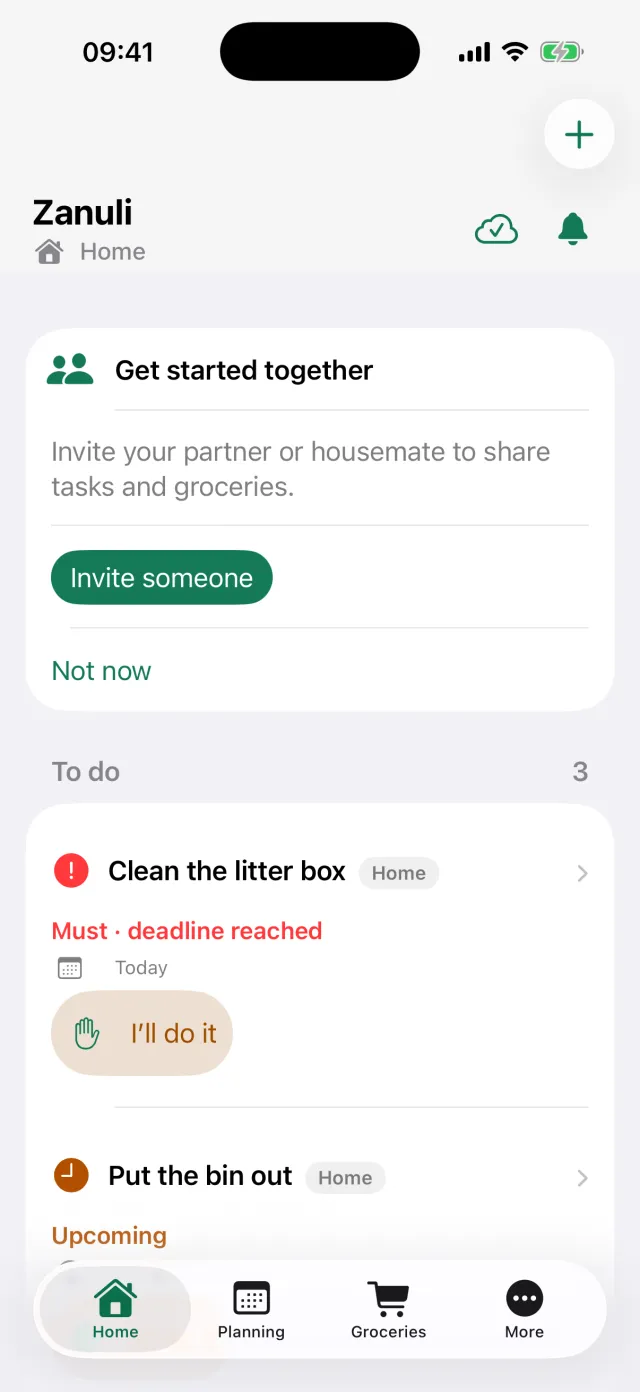
Zanuli always works inside a group: a household, a family or a set of housemates. Everything you create — tasks, routines and groceries — belongs to that group and is visible to everyone in it. After installing you sign in once, choose the name others will see, and create a group or join an existing one.
Step by step
- Sign in or register
Zanuli uses Auth0 for signing in. Your password is never stored in the app.
- Confirm your name
The app suggests a name based on your account. Keep it or choose your own; group members see this name on tasks, activity and history.
- Create a new group
Give the group a name, for example Home, and choose the type of group. You then own that group.
- Or join a group
Received an invitation? Choose I have an invitation and scan the QR code or enter the invitation code.
Good to know You can create more groups or join several groups later. Switch workspace under More moves between them; tasks and groceries stay strictly separated per group.
02
Creating a task
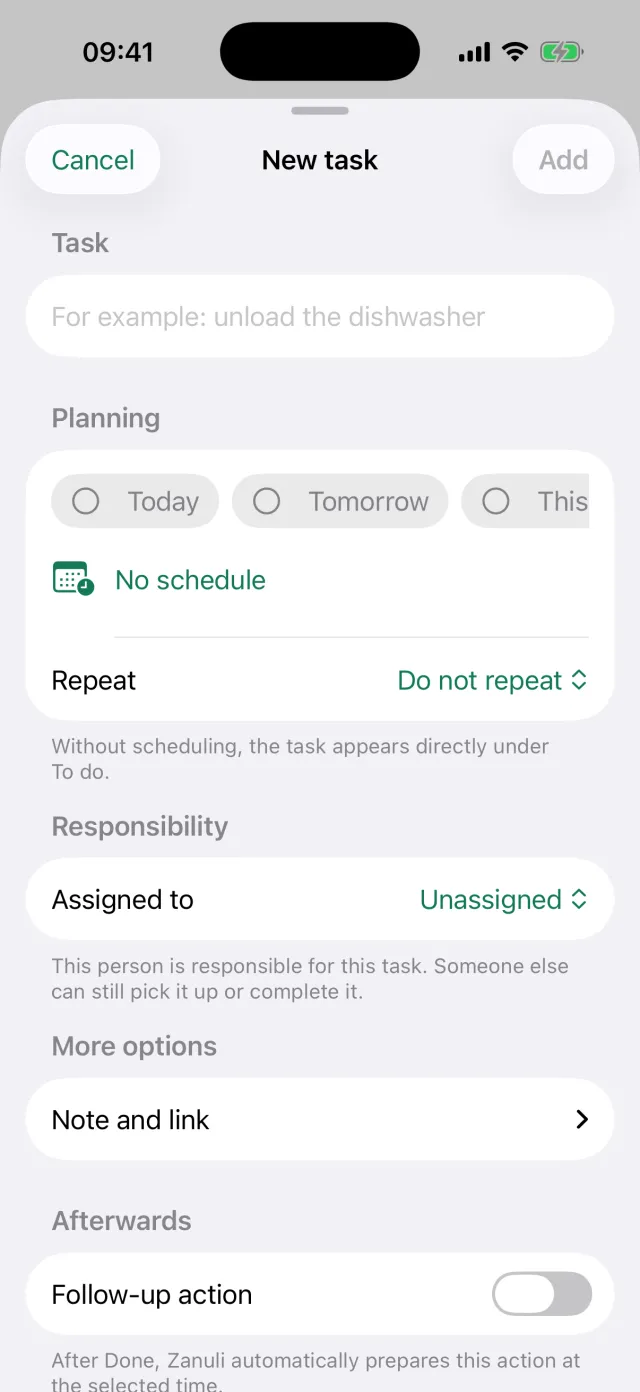
The plus button at the top right opens New task. Only the name is required; every other field may stay empty. A task without planning appears under To do straight away.
The fields
- Task
- The name of the chore, for example ‘Unload the dishwasher’. Up to 240 characters.
- Planning
- Choose Today, Tomorrow, This weekend or your own date and time. With No planning the task appears under To do immediately.
- Repeat
- Let the task return by itself, for example every Monday. That turns the task into a routine.
- Assigned to
- The person responsible. Someone else can still pick the task up or complete it.
- Note and link
- Room for extra context (up to 500 characters) and one web address starting with http or https.
- Follow-up
- Let Zanuli prepare a next task automatically once this one is checked off.
Good to know If you choose a custom time window, the end must come after the start. A task is only saved when the name is not empty.
03
Picking up, postponing and planning tasks
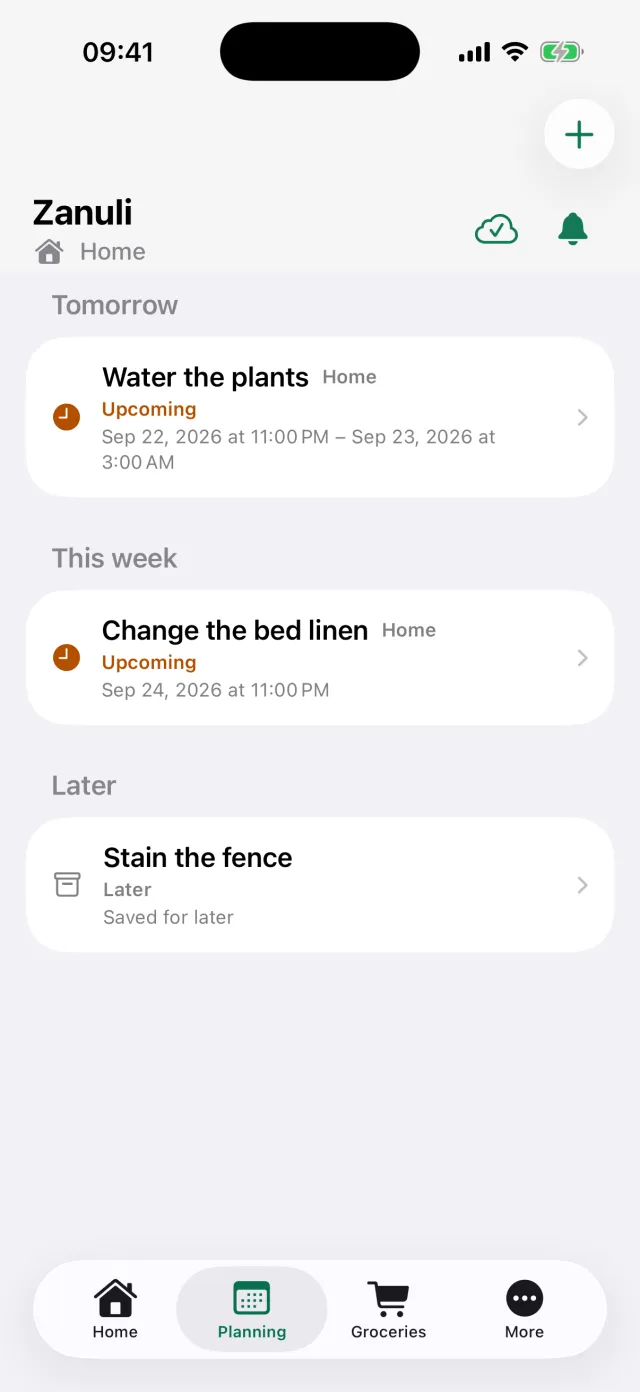
The home screen shows what needs attention now. Tap a task name to open it, or use the buttons and swipes to handle it quickly. The Planning tab shows the same tasks ordered by date, with everything you deliberately parked for later at the bottom.
The fields
- I’ll take it
- You claim the task. The whole group immediately sees that you are on it. Release hands it back.
- Done
- Swipe left or tap the button to check off. With a routine the task reappears at the next planned moment.
- Waiting for
- Park a task that depends on something or someone. You give a reason and can set a moment to check back.
- Postpone
- Choose when you want to see the task again: a preset or your own moment in the future.
- Skip this time
- Skips only this turn. The routine itself stays in place.
- Pass this turn on
- In a rotation routine the turn moves to the next person in line.
Good to know All actions work with VoiceOver too. Zanuli keeps working without internet for a while: your change is stored locally and synchronised once you are back online.
04
Routines and the More menu
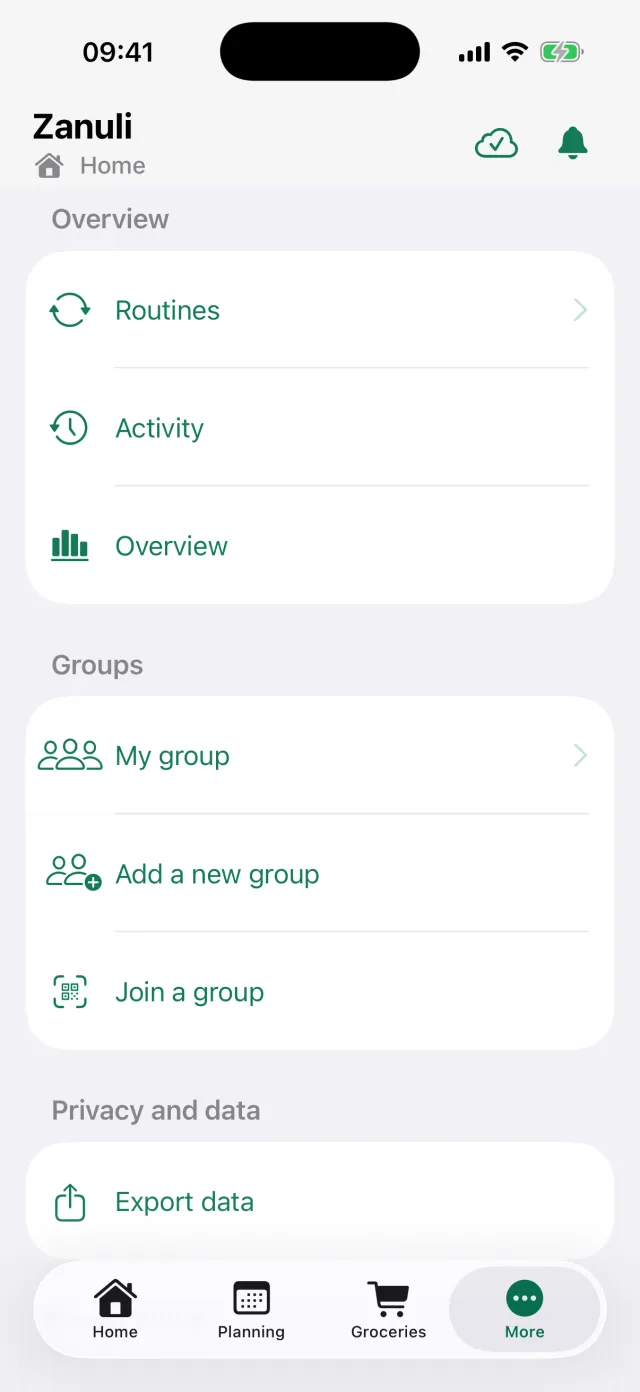
A task with a repeat becomes a routine. Under More → Routines you see them all together, including tasks prepared by a connected appliance. More is also the place for your groups, your account, integrations and exporting your data.
The fields
- Routines
- All recurring tasks in the group. Free groups have up to two active routines.
- Rotation routine
- A routine that passes the turn around. Choose at least two people and at least one task; the name may be up to 120 characters.
- Activity
- A timeline of what happened in the group, over a period you choose.
- Overview
- The scoreboard and the household agreements of the group.
- Switch workspace
- Move between your groups when you have more than one.
- Export data
- Download what Zanuli stores about your group.
05
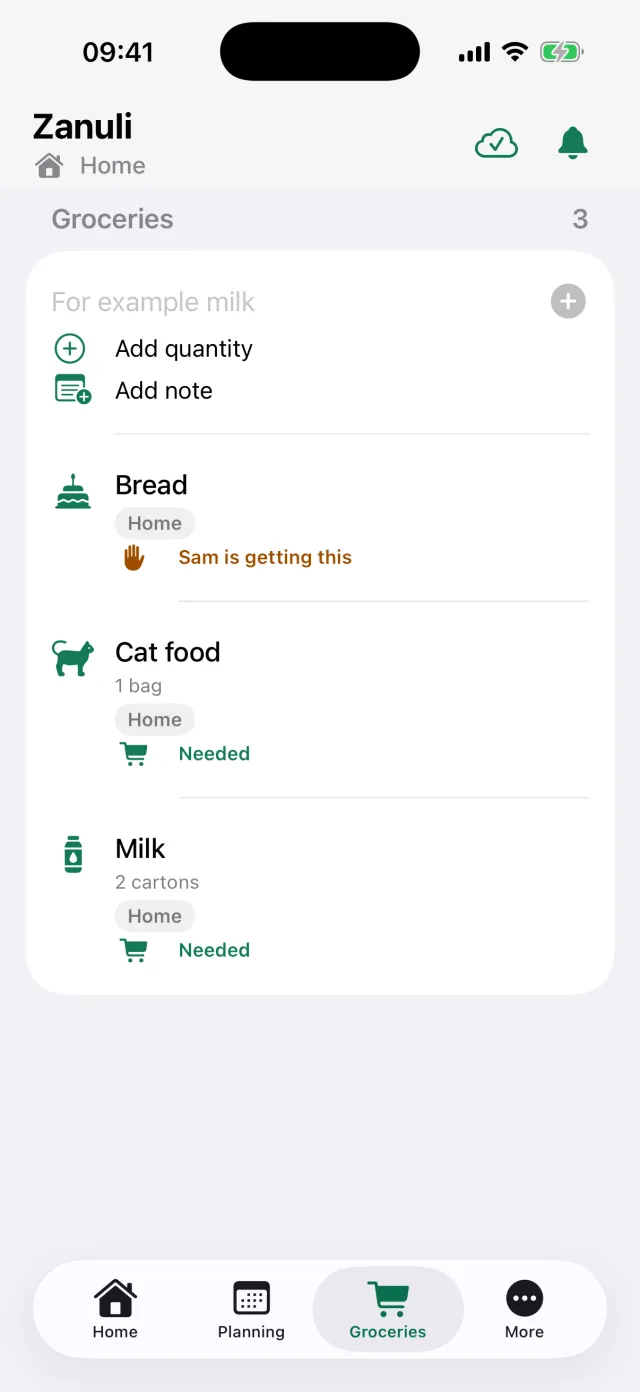
The shopping list
The shopping list belongs to the whole group. Anyone can add to it and everyone sees what is still needed — even when you are already in the shop.
The fields
- Quick add
- Type the name and tap the plus. Zanuli suggests items based on earlier groceries.
- Add quantity
- Optional, for example ‘2 cartons’. You can choose up to 99.
- Add note
- A short clarification, for example a brand or flavour.
- I’ll get this
- Show the group that you are picking it up, so nobody buys it twice.
- Bought
- Swipe left to take the item off the list. Swipe right to delete it.
06
Inbox: capture something quickly
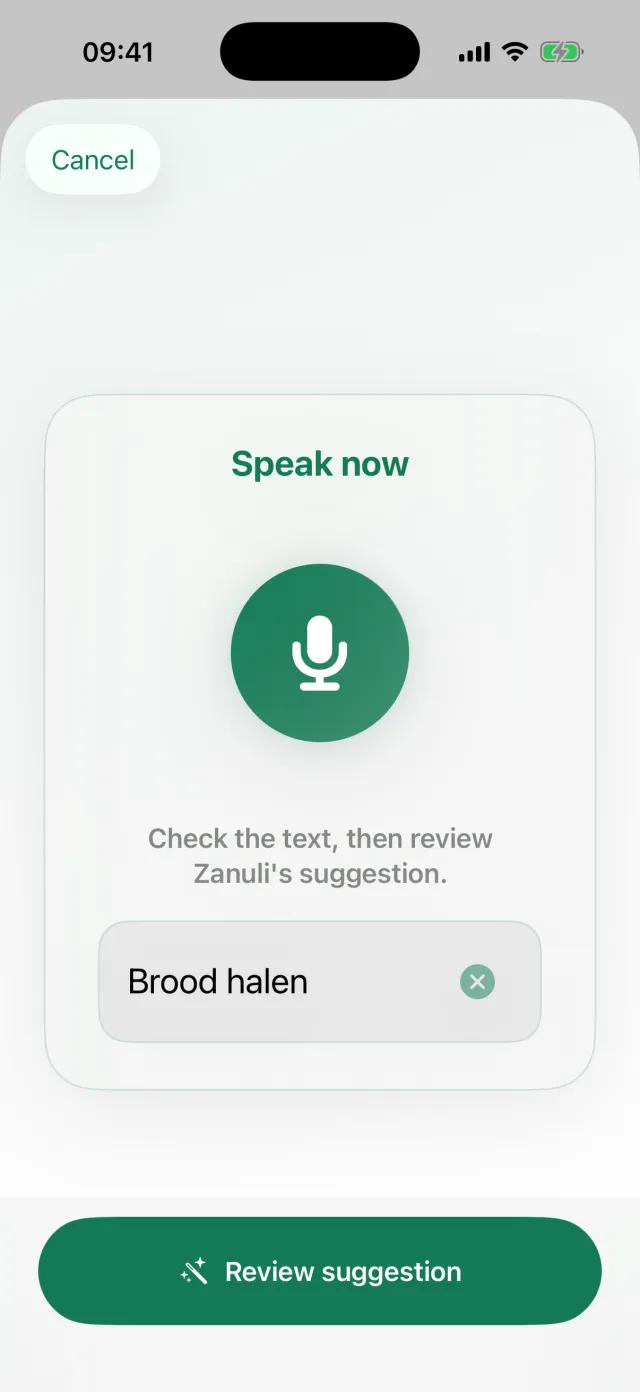
Sometimes you want to note something without turning it into a full task right away. Put it in the Inbox: type it or speak it. You sort the item out later and decide what it becomes.
Step by step
- Capture
Tap Record something or type your note. The app turns speech into text.
- Check
You see the suggestion first and can edit the text before continuing.
- Sort the item
Choose whether it becomes a task, a grocery item or a Waiting for item, and add planning or quantity if needed.
- Or keep it
Leave the item in the Inbox until you have time for it.
Good to know Dictated text is used as the task name and follows the same limit of 240 characters.
07
Your group, members and people
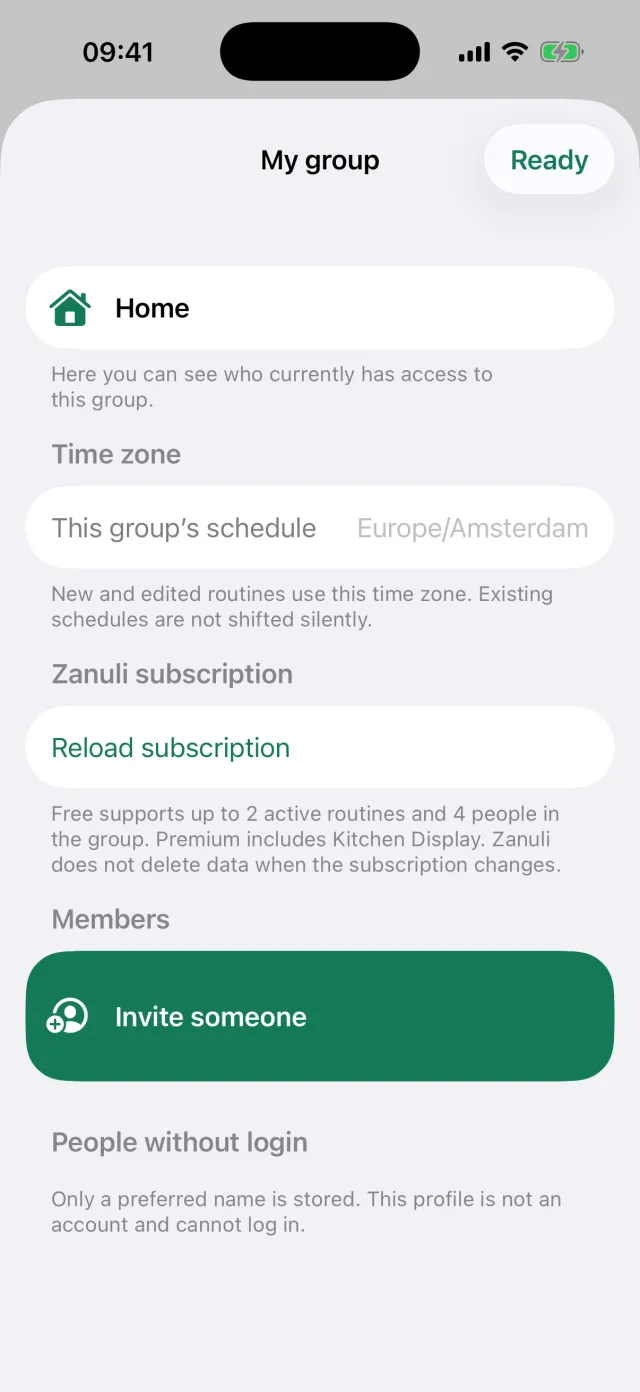
Under More → My group you manage who belongs to the group. There are two kinds of participants: members with their own account, and people without a login — children, for example — who can receive tasks but cannot sign in themselves.
The fields
- Invite someone
- Creates a QR code and a code you can share. An invitation can be used once and is valid for seven days.
- Members
- Everyone with their own account. The owner can make a member an administrator or remove them.
- People without a login
- Only a first name (up to 80 characters) is stored. This is not an account and cannot sign in.
- Planning for this group
- The time zone routines are planned in. Only the owner can change it; existing arrangements do not shift silently.
- Zanuli subscription
- Shows the current status and limits, plus the button to view or try Premium.
- Shared devices
- This is where you pair an iPad as a kitchen display.
Good to know Free supports two active routines and four group people. Premium applies per group rather than per person, and adds unlimited routines, the kitchen display and the integrations.
08
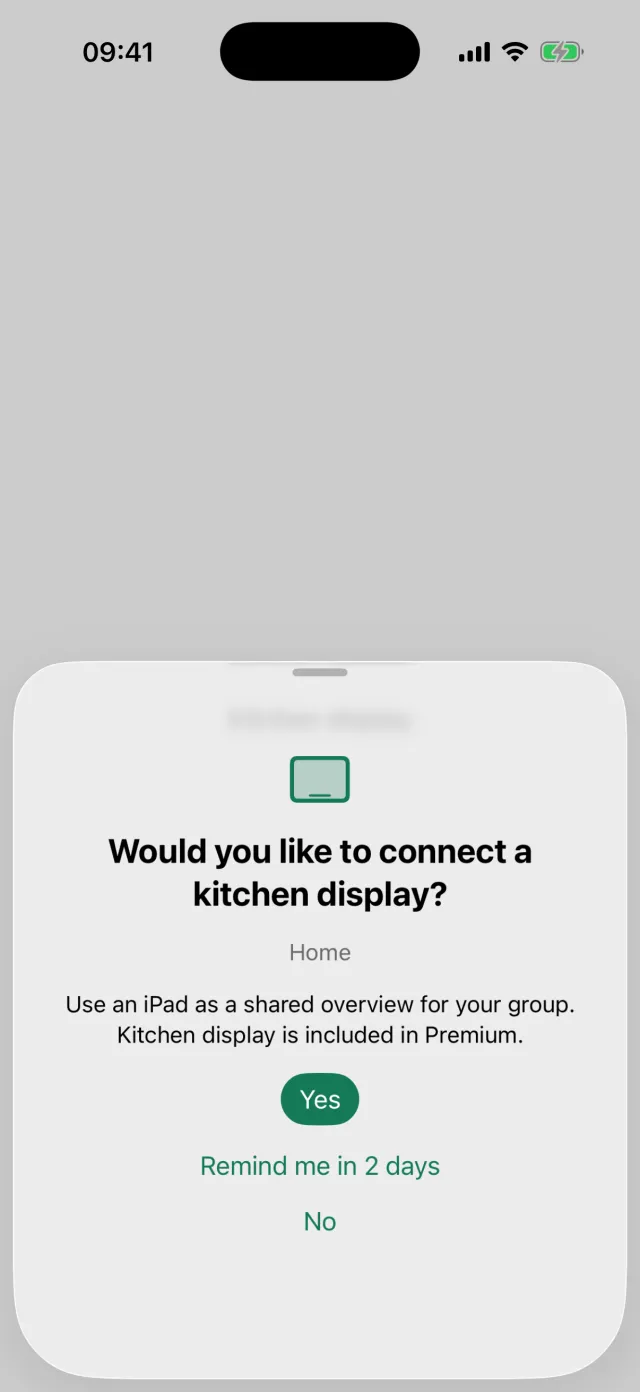
Pairing a kitchen display
A kitchen display is an iPad that permanently shows the group overview. The device needs no personal account: you pair it once with a code you create in the app.
Step by step
- Start in the app
Go to My group → Shared devices and choose Pair kitchen display.
- Name the device
For example ‘Kitchen tablet’. The name may be up to 80 characters.
- Create a pairing code
Zanuli shows a QR code and a code you can share.
- Pair the iPad
On the iPad choose Set up kitchen display and scan or paste the code.
Good to know You need an iPad with iPadOS 17 or later, internet and Premium for the group. Without active Premium the pairing is kept, but the iPad does not show the overview.
09
Using the kitchen display
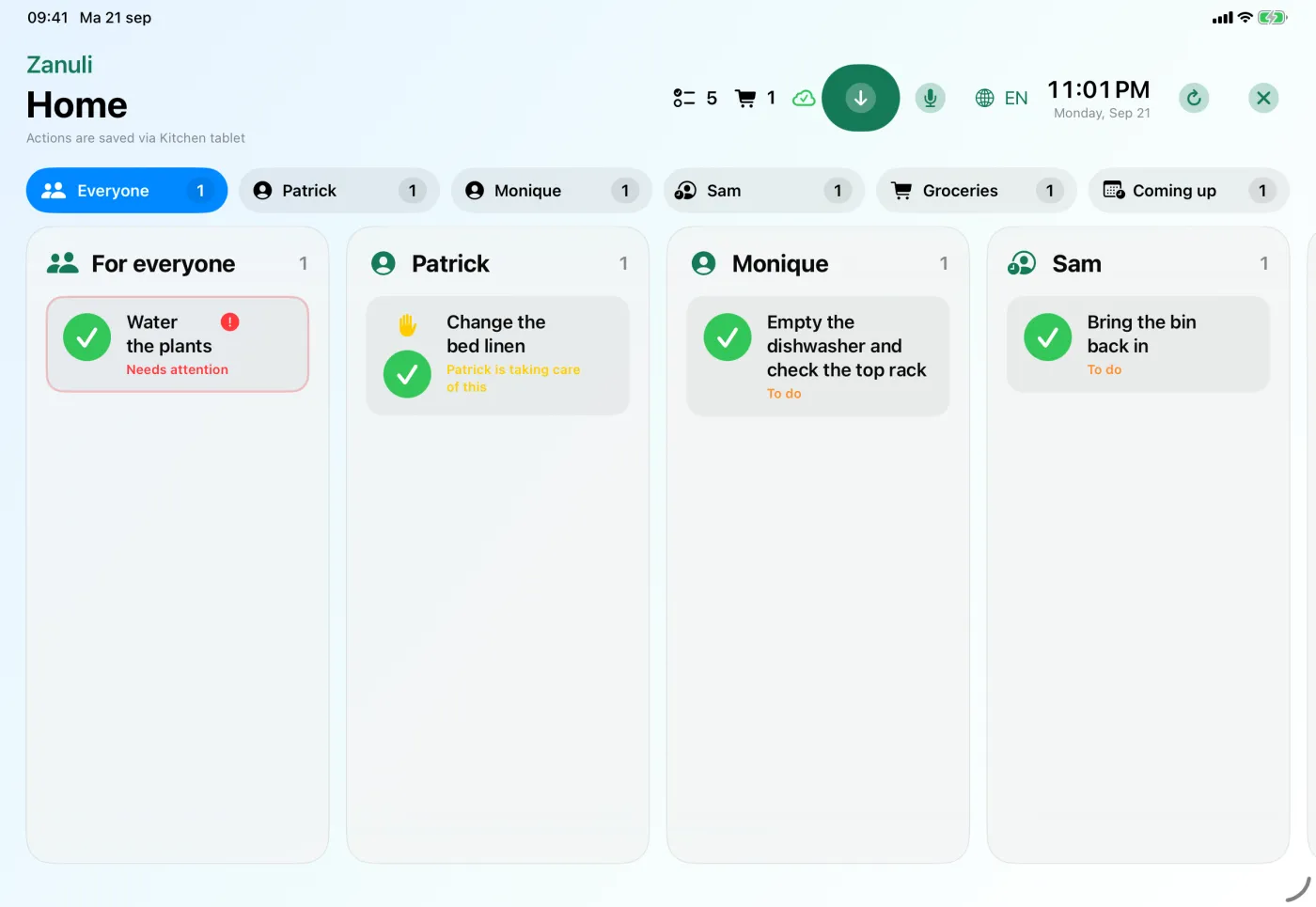
The kitchen display shows tasks per person side by side, plus columns for groceries and for what is coming up. Anyone walking past sees at a glance what still needs doing and can check it off right there.
The fields
- Columns
- Everyone holds the tasks that are not assigned yet. Each person also gets their own column.
- Done
- Check a task off on the display itself. Undo reverses that immediately.
- Groceries
- The shared list is visible and extendable from the kitchen display too.
- Record something
- Use the microphone button to add a task or grocery without typing.
- Language
- The kitchen display has its own language setting, independent of the phones in the house.
- Unlock management
- Protects the settings, so the display can simply stay in the kitchen.
10
Integrations: Shelly and Home Connect
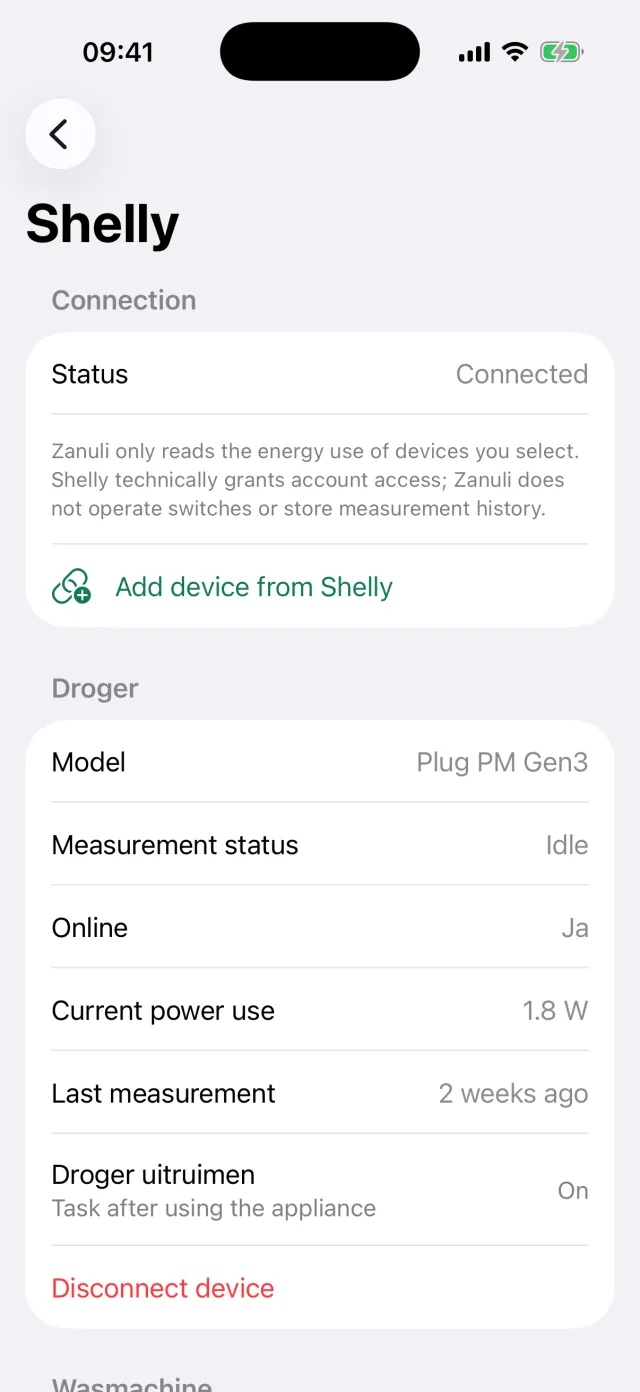
Zanuli can turn a finished appliance into a shared task. You decide which appliance takes part; Zanuli does not operate your appliances and never flips a switch.
The fields
- Shelly
- A Shelly Plug PM Gen3 measures the consumption of, for example, the washing machine. Zanuli recognises a finished cycle and can then prepare a task such as ‘Hang the laundry’.
- Minimum running time
- Prevents a short peak from counting as a wash. Adjustable from 1 to 360 minutes.
- Home Connect
- Links a compatible dishwasher. After a confirmed programme end a task such as ‘Unload the dishwasher’ appears.
- Maintenance signals
- Notices about salt or rinse aid can automatically become a task as well.
- Task name and timing
- For each appliance you decide what the task is called and when it appears.
- Automation enabled
- Switch the automatic task off temporarily without breaking the connection.
Good to know Creating a new connection requires Premium, ownership of the group, an account with the provider and internet. Zanuli stores no measurement history of your appliances.
11
Account, name and language
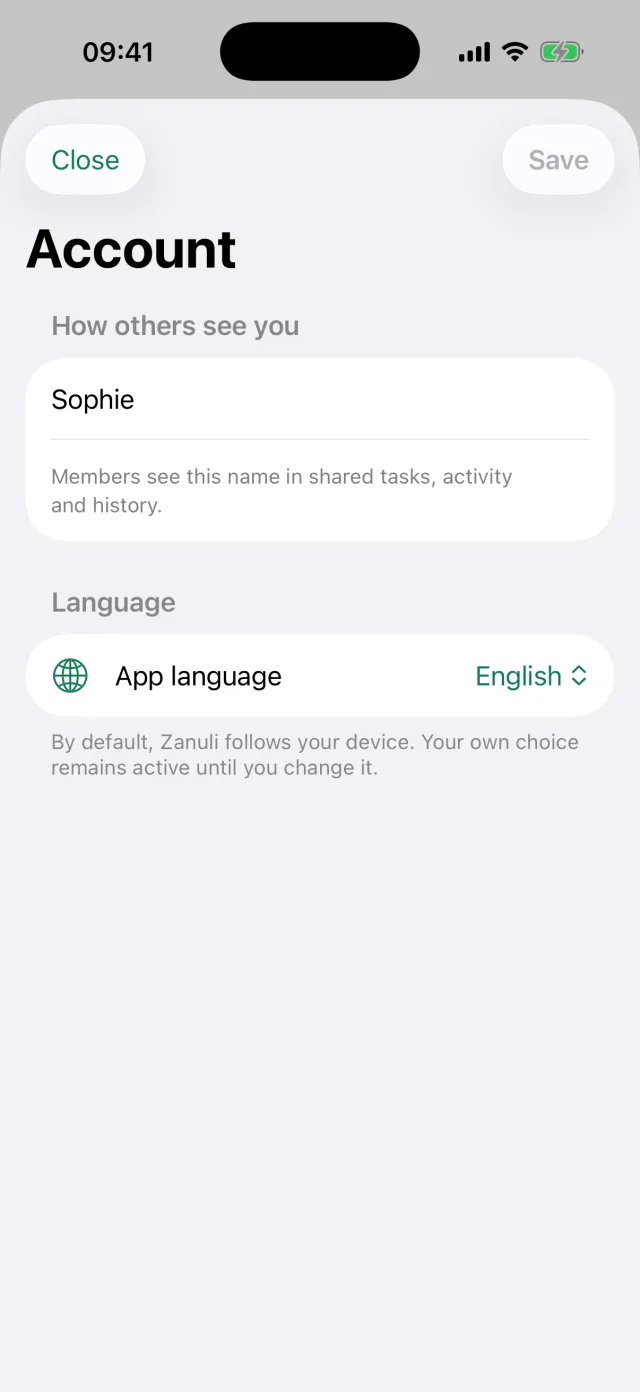
Under More → Account you manage what Zanuli holds about you personally. This is separate from the group: your name and language apply to you, on all your devices.
The fields
- How others see you
- Your display name, up to 80 characters. Members see this name on shared tasks, activity and history.
- App language
- By default Zanuli follows your device language. Your own choice stays until you change it.
- Your location
- Determines how the kitchen display adapts to sunrise and sunset.
- Switch account
- Sign in with another account without reinstalling the app.
- Delete account
- Removes your account. This step asks for a confirmation.
12
Overview and scoreboard
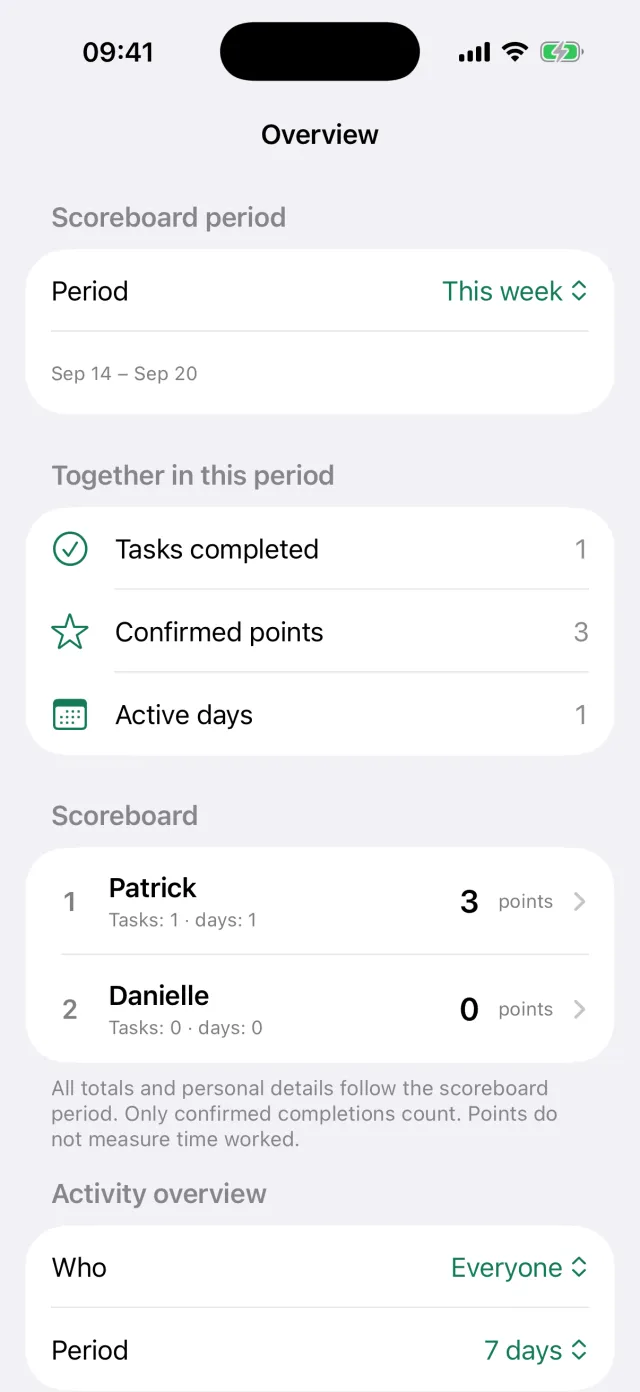
The Overview shows how the work is spread across the group. It is meant as a conversation starter, not as time tracking: points do not measure hours worked.
The fields
- Scoreboard period
- Choose the period you are looking at, for example this week.
- Together this period
- The number of completed tasks, confirmed points and active days.
- Scoreboard
- The standing per person. Tap a name for the details.
- To confirm
- Completions still awaiting confirmation. You can also deliberately leave them out.
- Household agreements
- Recorded agreements that belong to the group.
Good to know Only confirmed completions count towards the scoreboard.
Zanuli
Still stuck?
Send us a message on the support page. From the app you can also use More → Give feedback.
Go to support